Your Google review link, QR code and printable card — in one go.
Paste your business's Google Place ID below and get a direct review link, a downloadable QR code, and a ready-to-print "Review us on Google" card — all generated in your browser, nothing stored anywhere.
Invite honest feedback without incentives or a request for a particular star rating. Keep the public review option open to every customer. Templates are examples to adapt, not testimonials or evidence of customer results.
Your direct review link
Scannable QR code
More free tools
A direct link can make it easier for a customer to find the review form.
A regular Google Maps or website link makes a customer search for your business, find the reviews tab, then find the "write a review" button. A direct review link skips straight to the star-rating box when the customer is signed in to Google.
Find your Place ID using Google's official finder tool (link above the form).
Paste it in, generate your link, QR code and card.
Share the link by text or email, stick the QR on your counter, or print the card for the till.
Three places to share your invitation.
Receipts & invoices
Drop the QR code into your receipt or invoice template so every transaction carries a silent invitation to review.
Counter & till signage
Print the ready-made card above and prop it by the till, on tables, or at the exit — wherever the customer's last interaction happens.
SMS & email follow-ups
Use the direct link in an appropriate follow-up where you can lawfully contact the customer. For automation, confirm the available trigger and sending rules before launching a campaign.
Everything you might be wondering.
How do I find my Google Place ID? +
Is a direct Google review link the same as sharing my Google Maps link? +
Can I print the QR code on receipts, flyers or a counter sign? +
Is this free, and do I need to sign up? +
Start getting more Google reviews
Check your current review activity before choosing a follow-up workflow.
No card required · Set up in 5 minutes · Cancel anytime
See the generator in use
Actual screenshots of this tool using demonstration input. The sample Place ID is for illustration: enter your own location’s ID and check its destination before sharing. These images are not customer results.
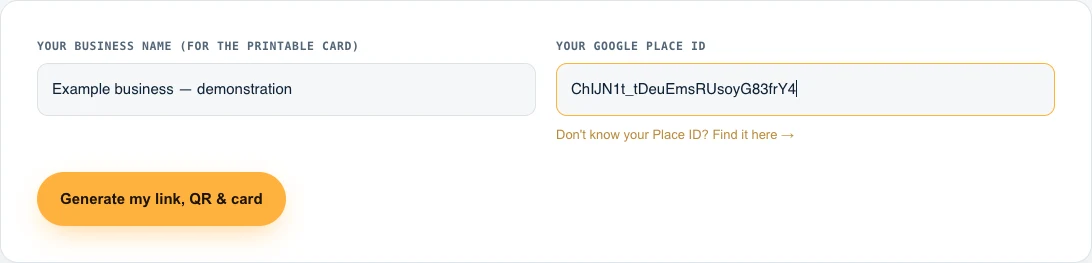
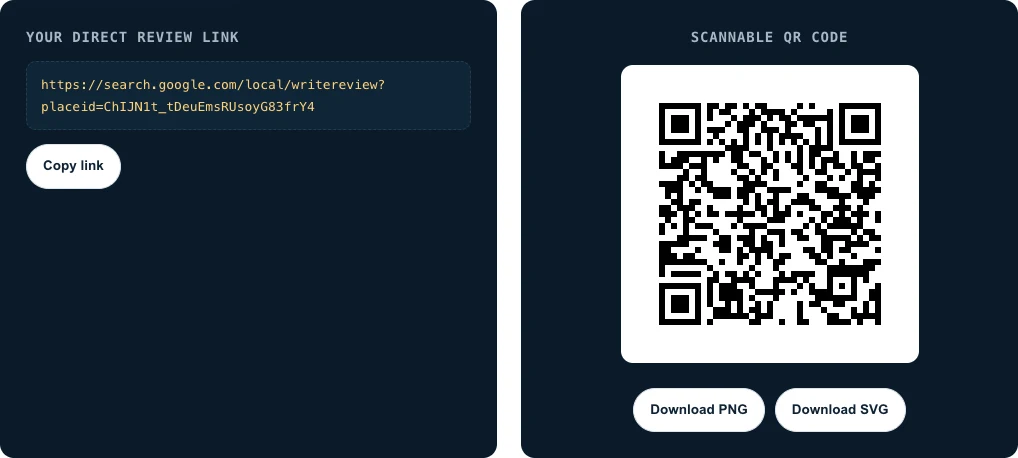
How to create a Google review link
You can create a direct link above using your business’s Place ID. Check the business name and address in Google’s finder before copying the ID, especially if you have several locations.
If you manage the Business Profile, Google also provides a review request link and QR code. Follow Google’s current instructions for your device. A customer may need to sign in to a Google Account before writing a review.
How to send a Google review link
- Generate or copy the link for the correct business location.
- Open it on your phone and check which profile it reaches.
- Put it in a short message with a neutral request for honest feedback.
- Use an appropriate point after the job or visit, with the contact permissions your channel requires.
- Test your message before sending and respect opt-outs.
Email example
Subject: Your feedback on [Business]
Hi [Name], thank you for choosing [Business]. If you would like to share your experience, you can leave an honest Google review here: [Review Link]. Thank you for your time, [Sender].
SMS example
Thanks for choosing [Business]. If you’d like to share your experience, here is our Google review link: [Review Link]. [Required opt-out instructions]
These are examples to adapt. See our review request email templates and subject lines and UK contact-permission guide.
What if the review link does not work?
Check the copied link for missing characters, confirm the Place ID belongs to the current location and try a different browser. A Google sign-in screen is not necessarily a broken link. If the destination is the wrong business, correct the link before sending or printing it.
For paper invitations, use our free QR code template and printing guide.